-
Home
-
Tips and tricks for presenters (Zoom)
Tips and tricks for presenters (Zoom)
Choice of browser
- In principle, it is possible to take part in a Zoom session via your browser
- However, the features available in the browser are limited
- Where possible, please use Chrome or Firefox (to be able to use as many features as possible
Participation via a web browser
- Click on the Zoom invitation link
- Please ensure that you are using Chrome or Firefox (if necessary, open the link again in the correct browser)
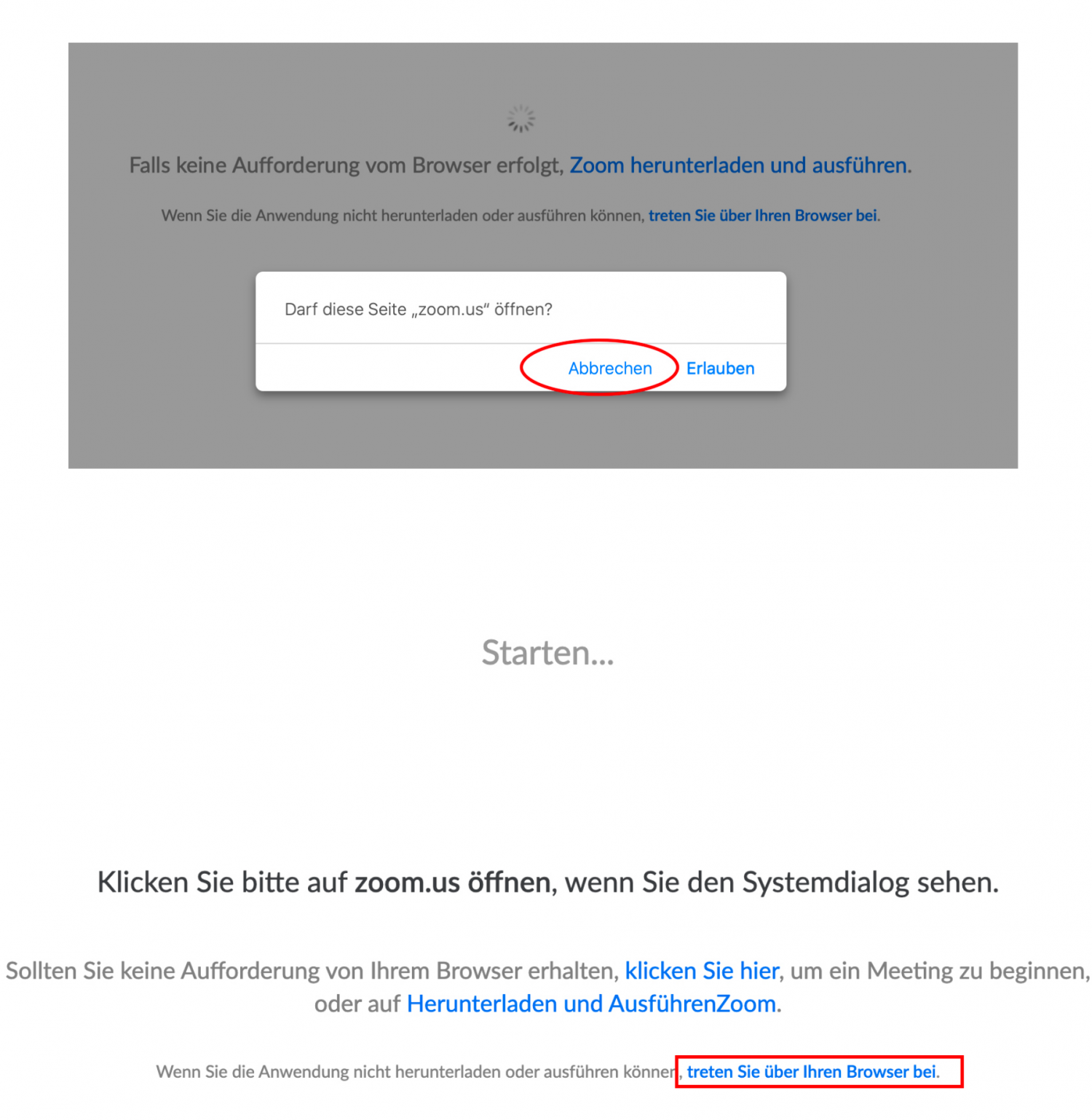
- A pop-up message will appear (which attempts to open the Zoom app)
- Click ‘Cancel’
- Then click on ‘Log in via your browser’ (you’ll find the link right at the bottom in the small print)
- Your default browser will open automatically
- You can now join the session
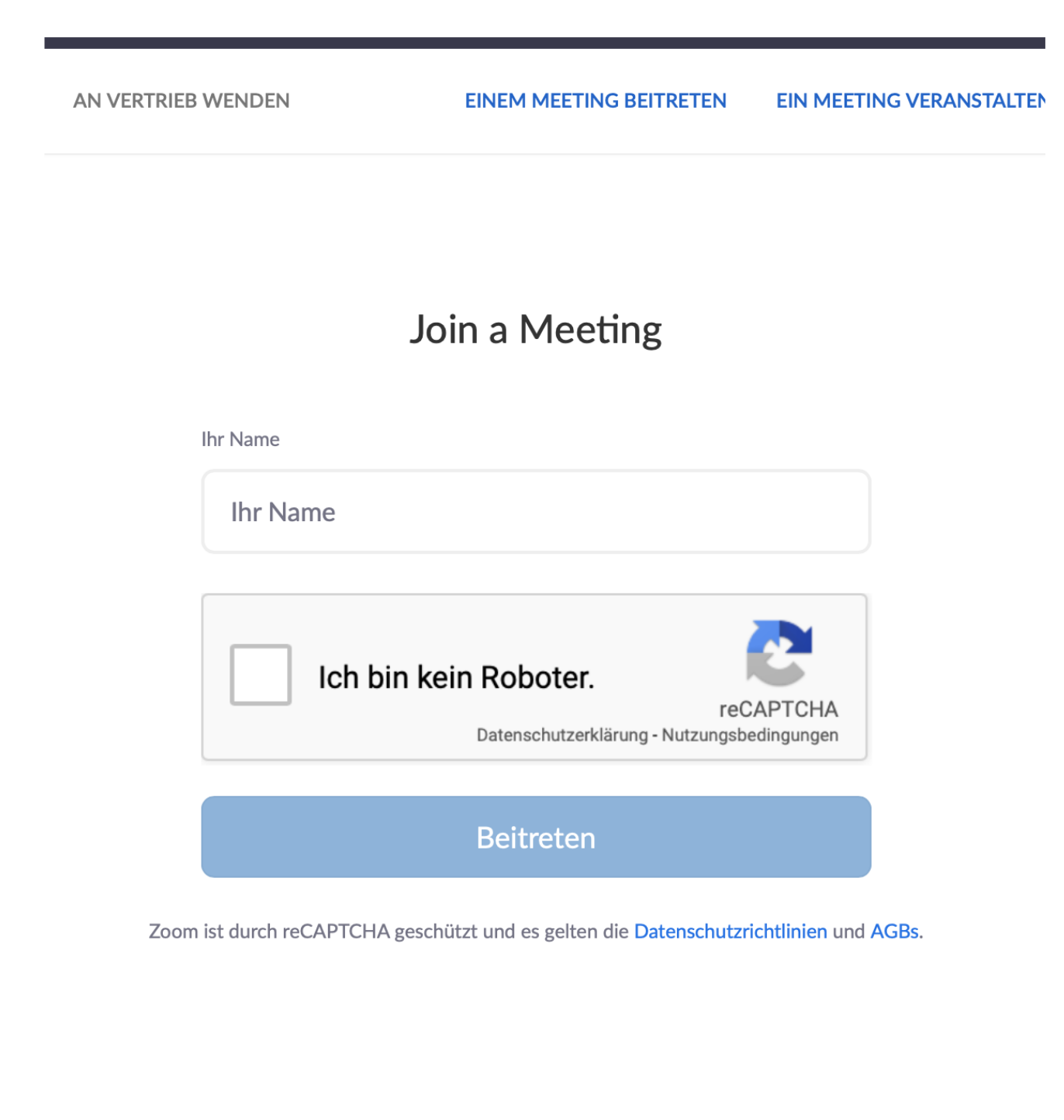
- Enter your full name here
- Your name will be displayed on your screen during the session
- Click ‘Join’
- Please agree to the Terms of Use
- The Zoom session will now open and you should be able to see and hear the other participants
Zoom settings
- At the bottom left you will see a microphone and camera icon
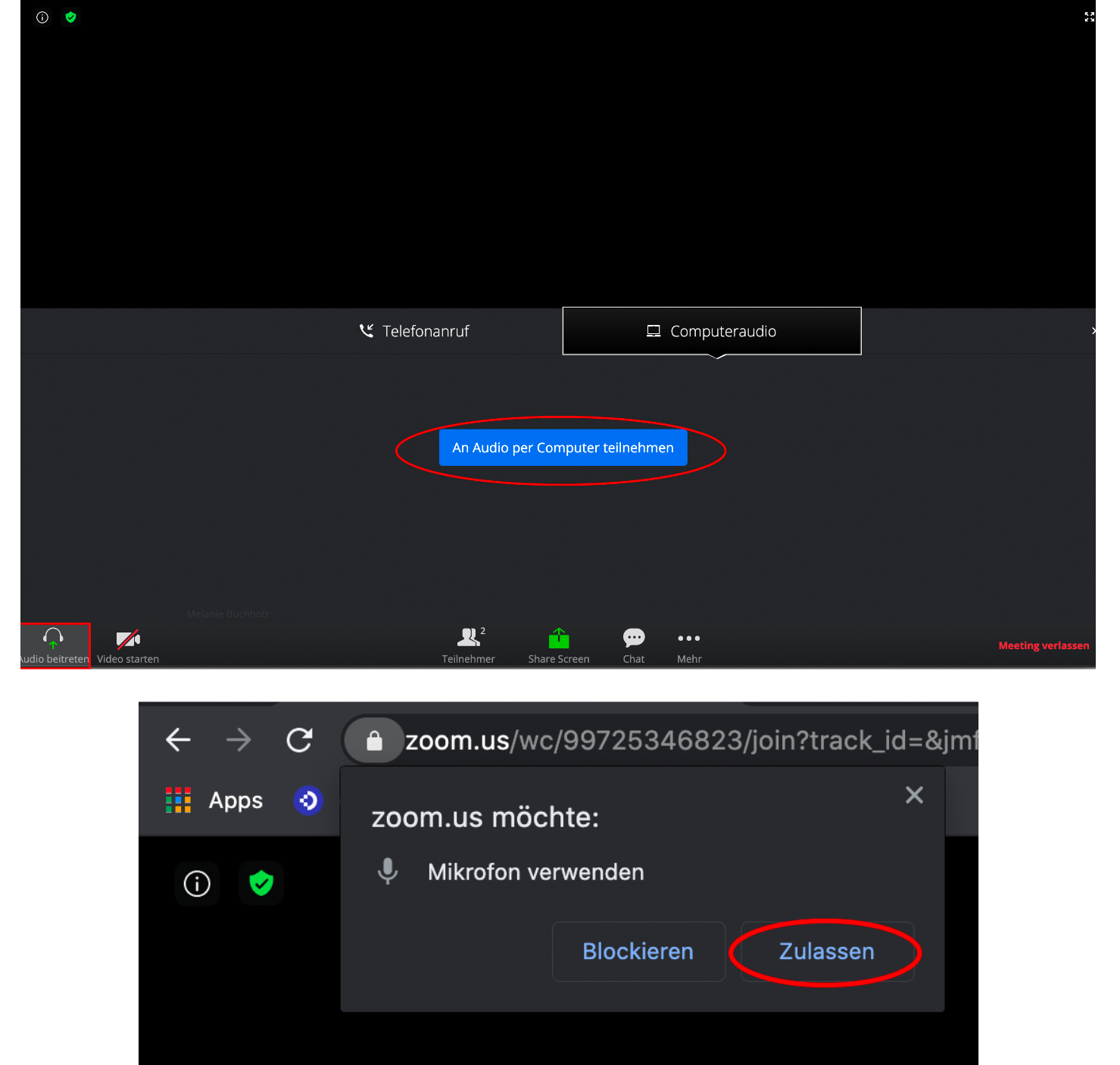
- If you see NO microphone, but only a headphone icon, you will need to enable your microphone
- Click on the headphones ‘Join audio’
- Click on ‘Join audio via computer’
- You must then allow its use
- The same applies to the camera (click to enable, allow access)
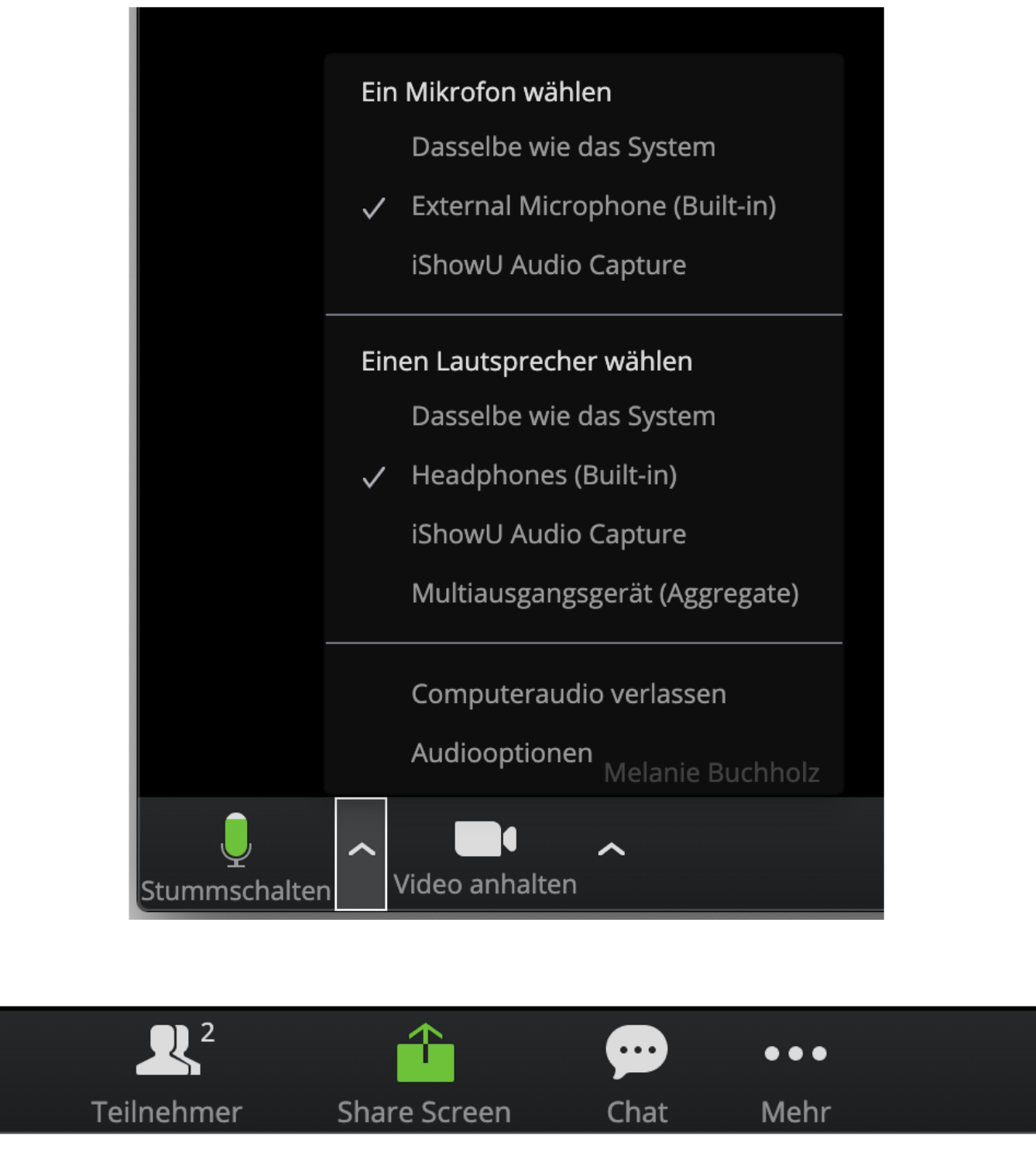
- Next to the microphone icon, you can use the arrow to open the Audio menu
- Here you can check whether the correct microphone and headphones are being used
- In the menu bar, you can use ‘Share Screen’ or ‘Share Screen’ to share a presentation
- If this option is NOT displayed, you will need to use a different browser (e.g. Chrome or Firefox)