Information on registration and participation in the 1st BKK-digital 2020
1. Register first!
If you would like to take part in BKK-digital, you must first register:
⇒ Register for BKK-digital 2020
2. After registering
Registered participants will receive further information by email a few days before the congress, along with a personal login link, which will give them access to the event portal and all online sessions. (Preview of the portal: https://www.beschaffungskongress.de/de/bkk-digital)
On the day of the event, the ‘Join’ button will appear in the top left-hand corner of each online session in the programme.
Once you’ve clicked on it, you’ll have the option to join the online session via:
- Live stream (via YouTube): simply click on it and the online session will open in a video player
- Zoom (via client or web browser)
Participation via Zoom software (recommended)
We recommend participating using the Zoom client software. This ensures you enjoy the best possible experience in terms of performance, interactivity and ease of use. You can download the Zoom client for PC, Mac, iOS and Android here: https://zoom.us/download
Joining via Zoom Web
You can also join without installing the Zoom client. To do so, you’ll need a (free) Zoom user account, which you can register for here: https://zoom.us/signup
Please check the compatibility of the features with common browsers under the heading ‘Technology used’.
Zoom
We use the Zoom software for the online sessions (digital plenary sessions, forums and workshops, etc.). The tool is intuitive to use and enables interaction between speakers and participants. The Zoom client software is available for all common devices and operating systems. To ensure the best possible experience, we recommend installing the Zoom client: https://zoom.us/download
If you are unable to install the client on your device, you can also join via your web browser. However, you will then need a (free) Zoom account, which you can register for here: https://zoom.us/signup
| Browser features overview | Chrome | Firefox | Safari | Edge | Internet Explorer |
| Join via video | ✓ | ✓ | ✓ | ✓ | |
| Share screen | ✓ | ✓ | ✓ | ||
| Join with audio | ✓ | ** | ** | ✓ | |
| Join via telephone | ✓ | ✓ | ✓ | ✓ | ✓ |
| View shared video | ✓ | ✓ | ✓ | ✓ | |
| View shared screen | ✓ | ✓ | ✓ | ✓ | ✓ |
| Chat function | ✓ | ✓ | ✓ | ✓ | ✓ |
| Q&A function | ✓ | ✓ | ✓ | ✓ | ✓ |
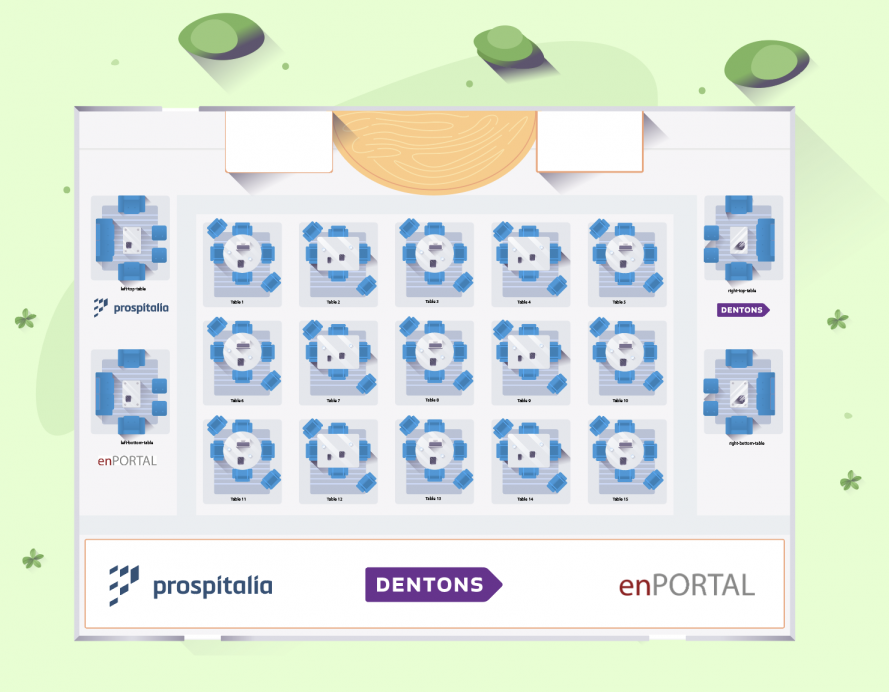
For digital networking, we use the Remo software (see image). This enables sponsors and participants to interact during the breaks: simply join a table to chat with the people there.
Preparation
- If necessary, restart your computer/tablet/mobile phone
- Close any programmes you do not need
- Close any documents you do not need (especially if they contain sensitive data) if you are considering sharing your screen
- If you wish to participate with video and audio: use high-quality audio and video sources
- Switch off your phone or put it on silent
Test
- Test your video and audio settings
- Test your lighting conditions
Take the tips for participants to heart.
Set-up
- Make sure you’re sitting comfortably.
- Put away anything that might distract you.
Image
- For a professional image, position your camera at eye level and ensure you fill the frame.
- Natural lighting from the front shows you in the best light.
- Check your background: What can be seen in the frame?
Audio
- Join the meeting from a quiet place. Also be mindful of wind, which could interfere with the audio.
- Avoid feedback and echoes
- If necessary, hang a ‘Do Not Disturb’ sign on the door to prevent unwanted interruptions
No spontaneous feedback from the audience
- Bear in mind that the online format does not allow for spontaneous feedback from the audience. Friendly laughter, clearing one’s throat or other reactions are therefore only possible to a limited extent.
Zoom client
- Familiarise yourself with the software. You can try Zoom for free and practise in a meeting with a colleague.